
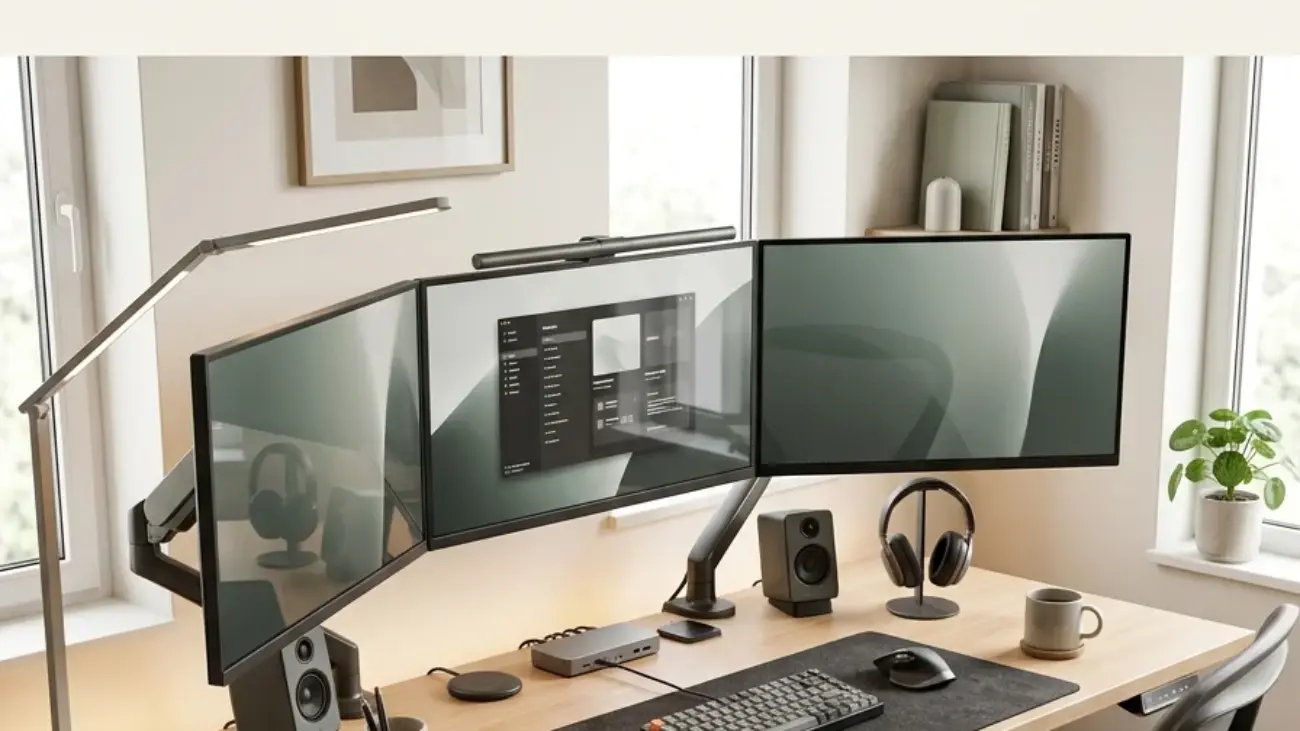
An optimized multiple monitor setup arranges two or more screens, their mounting hardware, cabling, and surrounding lighting specifically around how the eyes and neck move between displays, rather than simply lining up extra monitors on a flat desk. This article gives you 15 genuinely effective ways to optimize a home office multiple monitor setup, covering furniture, lighting, material, and layout decisions that keep a multi-screen workstation comfortable across a full workday instead of straining the neck by lunchtime.
It feels like the whole field of view finally makes sense: screens angled just enough that the neck doesn’t twist to check a side monitor, cables routed so cleanly they disappear from thought entirely, light balanced so no single panel glares brighter than the rest. This is a multiple monitor setup at its most resolved: deliberate, calm, built around how attention actually travels across more than one screen. Every adjustment earns its place because a multi-monitor desk has more that can go wrong than a single-screen one.
Here are 15 ideas worth saving and stealing.
Why Optimizing a Multiple Monitor Setup Works So Well
A properly optimized multi-monitor setup draws from ergonomics research originally developed for financial trading floors and broadcast control rooms in the 1990s, where operators needed to track many data sources at once without the neck and eye strain that comes from constantly turning toward off-center screens. What distinguishes a genuinely optimized setup from simply owning more monitors is that every additional screen is treated as a source of potential physical strain that has to be actively managed through angle, distance, and lighting, not just plugged in and left flat on the desk.
The core materials favor matte, non-reflective finishes throughout: matte black monitor bezels for visual consistency, felt or wool desk pads to dampen sound across a wider keyboard zone, and matte walnut or oak for extra-deep desks that can physically support the added screen weight and depth. Color leans toward warm charcoal or matte black directly behind the monitor array, since a multi-screen setup multiplies the glare problem a single bright wall creates behind one monitor.
Style at a Glance
| Element | Core Trait 1 | Core Trait 2 |
| Philosophy | Every additional screen actively managed for strain, not just added to the desk | Consistency across all monitors reduces visual noise |
| Materials | Matte black bezels, felt desk pads, matte walnut desk | Anti-glare screen filters, matte wall paint |
| Color Palette | Warm charcoal or matte black focus wall | Warm white surrounding walls |
15 Ways to Optimize a Home Office Multiple Monitor Setup
1. Choose an Extra-Deep Walnut Desk to Support Multiple Screens
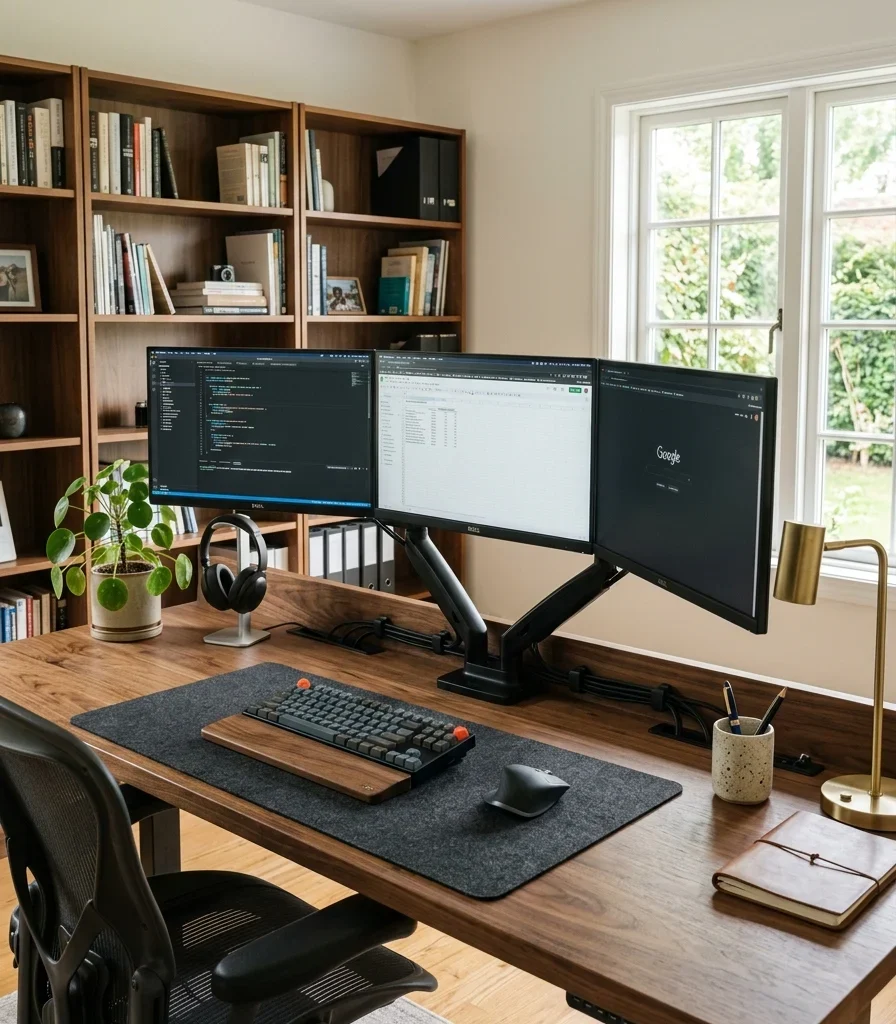
Vibe: Still a desk with enough physical depth that three screens sit comfortably without crowding the keyboard forward.
Why it works: Desk depth is a proportion principle that most single-monitor desks never need to solve. A standard 24-inch desk works fine for one screen, but three monitors (even on slim stands) require enough rear clearance for cables and airflow, so a desk depth of at least 30 inches keeps the keyboard zone from being pushed uncomfortably close to the edge.
How to get it: Choose a solid walnut or walnut-veneer desk at least 30 inches deep and 60 inches wide for a three-monitor array, and confirm the desk’s weight rating accounts for the combined load of monitors, arms, and any additional equipment before mounting anything.
💡 Quick Win: A desk depth extension shelf under $40 adds several inches of rear clearance to an existing shallower desk without a full replacement.
Shop the Look
| Product |
| Extra deep walnut desk 30 inch |
| Desk depth extension shelf |
| Matte black monitor stand riser |
| Small ceramic pen cup |
| Cable management tray under-desk |
2. Paint a Warm Charcoal Wall Behind the Monitor Array

Vibe: Grounded a wall dark enough to disappear behind three screens instead of reflecting into all of them at once.
Why it works: Wall color behind the monitor matters more with multiple screens than with one; a bright white wall reflects ambient light into peripheral vision across the entire width of a multi-monitor array, multiplying the contrast strain a single screen alone would create, while a matte warm charcoal absorbs that reflected light across the full span.
How to get it: Paint the wall section spanning the full width of the monitor array (not just directly behind one screen) in a matte warm charcoal, extending at least 6 inches beyond the outermost monitor on each side so peripheral vision doesn’t catch a bright wall edge.
Shop the Look
| Product |
| Warm charcoal matte wall paint |
| Small desk plant ceramic pot |
| Matte black monitor stand |
| Painter’s tape precision edge |
| Anti-glare monitor mount arm |
3. Add a Triple-Monitor Arm Mount to Clear the Desk
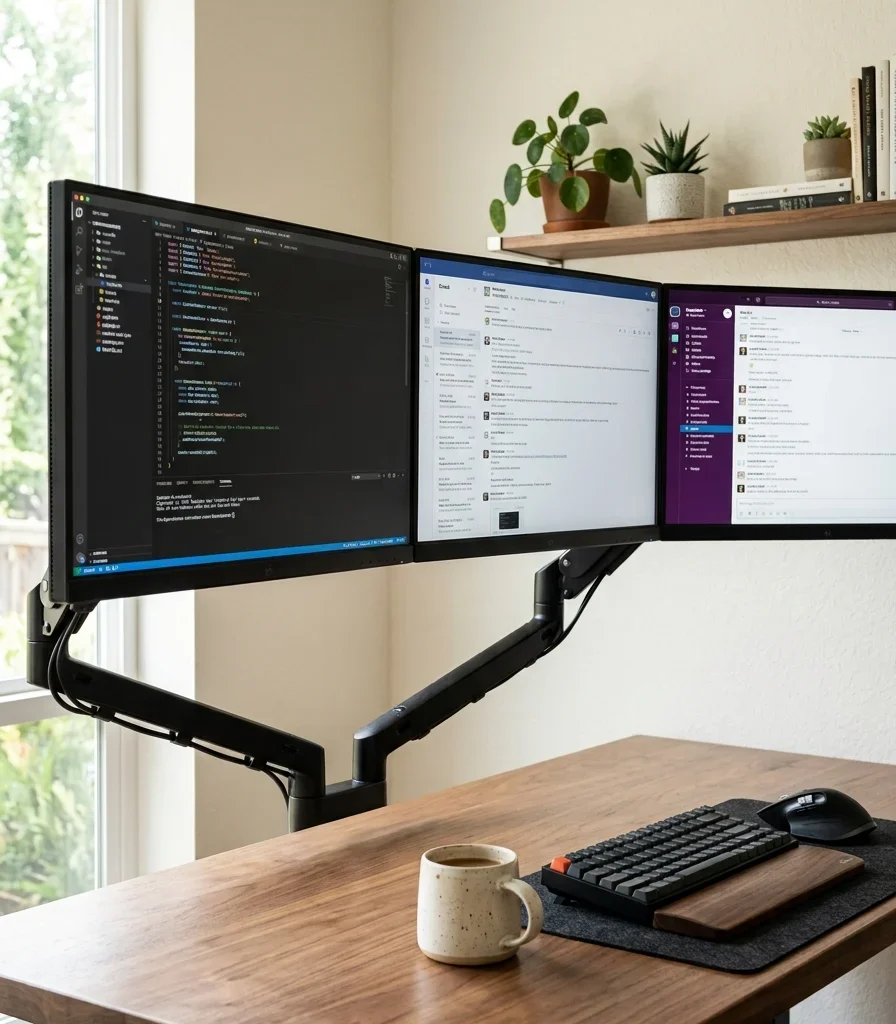
Vibe: Functional three full-size monitors floating above a desk that still has genuine room left to work on.
Why it works: A triple-monitor arm applies negative space and proportion principles at a scale flat stands can’t match; mounting all three screens on one articulated system reclaims the desk depth each stand would otherwise occupy, while allowing independent height, angle, and distance adjustment for every screen rather than accepting whatever a fixed stand provides.
How to get it: Choose a triple-monitor arm rated for the combined weight of all three screens, mount it to a desk clamp or grommet base rated for the same load, and set the center monitor’s top edge at eye level with the two side monitors angled inward rather than staying perfectly flat.
Shop the Look
| Product |
| Triple monitor articulated arm mount |
| VESA mount adapter plate set |
| Small ceramic coffee mug |
| Desk clamp weight-rated base |
| Anti-fatigue desk mat |
4. Add Bias Lighting Behind Each Monitor to Balance Brightness

Vibe: Hushed, a soft, even glow behind every screen so no single monitor reads brighter or darker than its neighbors.
Why it works: Bias lighting behind a single monitor reduces screen-to-wall contrast, but across multiple monitors it solves a second problem too: without matched lighting behind each screen, the outer monitors in a multi-screen array can appear dimmer relative to a brightly lit center screen, and consistent bias lighting behind all three equalizes that perceived brightness difference.
How to get it: Mount identical warm 2700–3000K LED strips behind each monitor at the same brightness setting (roughly 10% of each monitor’s own brightness), rather than lighting only the center screen, so the eye doesn’t have to readjust when shifting attention between monitors.
💡 Quick Win: A three-pack of USB-powered adhesive bias light strips under $25 lights all three monitors from a single low-cost purchase.
Shop the Look
| Product |
| USB-powered LED bias light strip 3-pack |
| Warm 2700K adhesive LED strip |
| Small ceramic desk mug |
| Monitor-mount cable clip set |
| Dimmable LED controller |
5. Install a Felt-Lined Cable Channel for Multi-Monitor Wiring
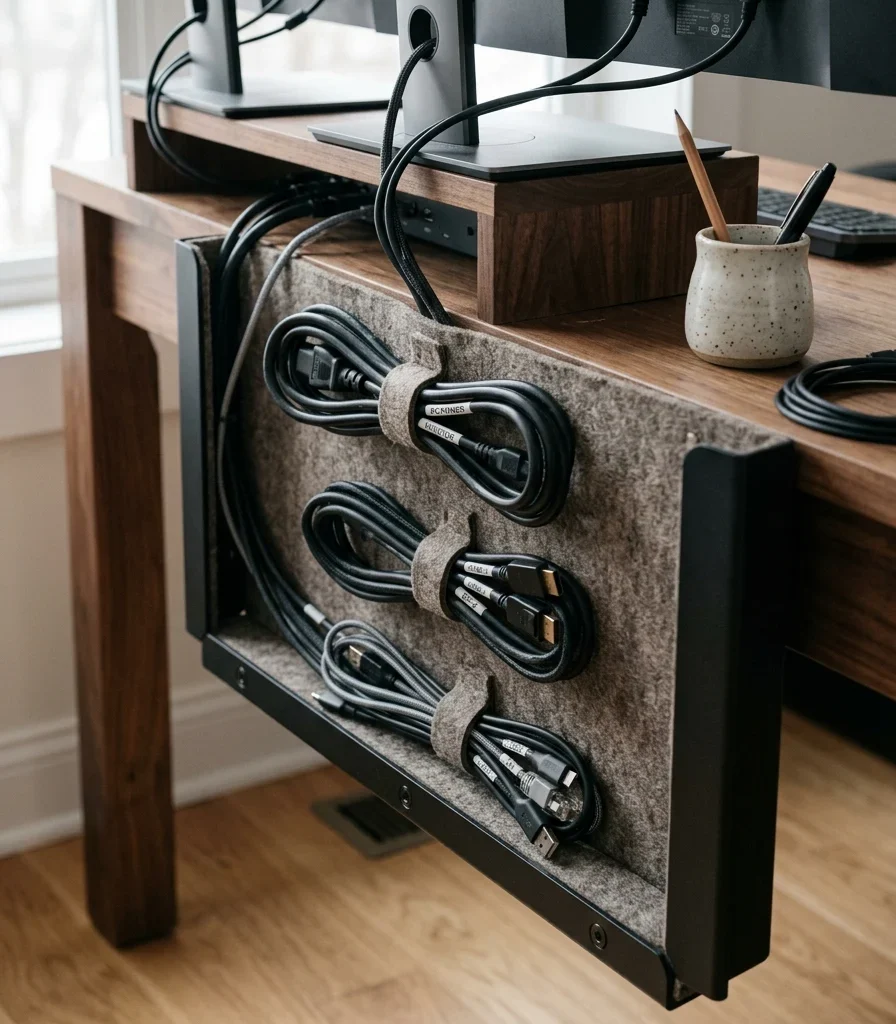
Vibe: Still three monitors’ worth of cabling contained in one quiet channel instead of tangling into one mass.
Why it works: A felt-lined channel solves a material and organizational problem specific to multi-monitor setups with three power cables, three video cables, and often a USB hub all running to one desk; plain cable tray lets them tangle together, while felt lining keeps each monitor’s cable bundle separated and cushioned against vibration and rattling.
How to get it: Choose a cable channel wide enough to hold three separated cable bundles without compression, line it with a felt insert if it doesn’t come with one, and label each bundle at both ends so troubleshooting one monitor doesn’t require untangling all three.
Shop the Look
| Product |
| Felt-lined cable management channel |
| Cable label tag set |
| Velcro cable tie set |
| Small ceramic pen holder |
| Power strip cable box |
6. Use Labeled Cable Sleeves for Each Monitor’s Cord Run
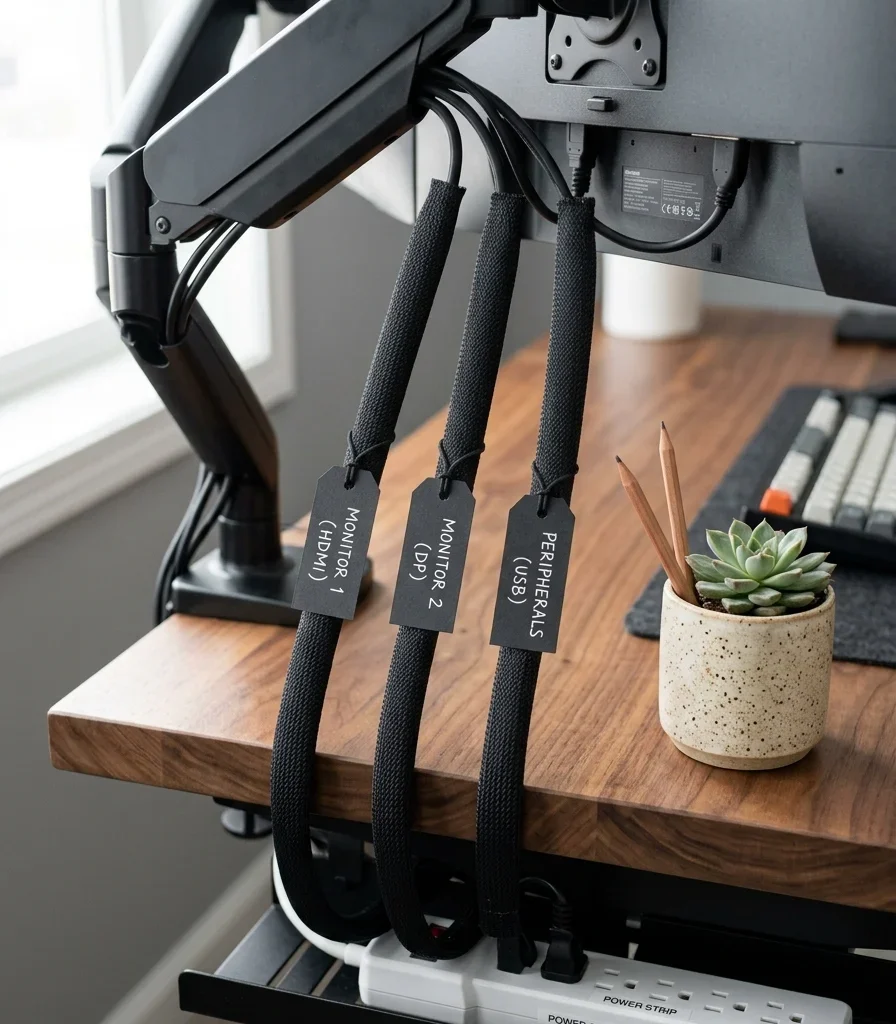
Vibe: Tidy three individual cable runs that stay identifiable at a glance instead of merging into one indistinguishable bundle.
Why it works: Labeling matters specifically once a setup exceeds two monitors; with only one or two screens, tracing a cable back to its source is manageable by sight, but a three-or-more monitor array multiplies the number of cables enough that troubleshooting without labels becomes genuinely time-consuming, undermining the calm the rest of the setup is meant to provide.
How to get it: Wrap each monitor’s full cable run (power and video together) in its own fabric sleeve, and attach a small write-on label at both the monitor end and the power strip end identifying which screen it belongs to.
Shop the Look
| Product |
| Fabric cable management sleeve set |
| Write-on cable label tags |
| Small ceramic desk organizer |
| Cable sleeve zipper closure |
| Labeled power strip surge protector |
7. Choose Matte Black Bezels for Visual Consistency
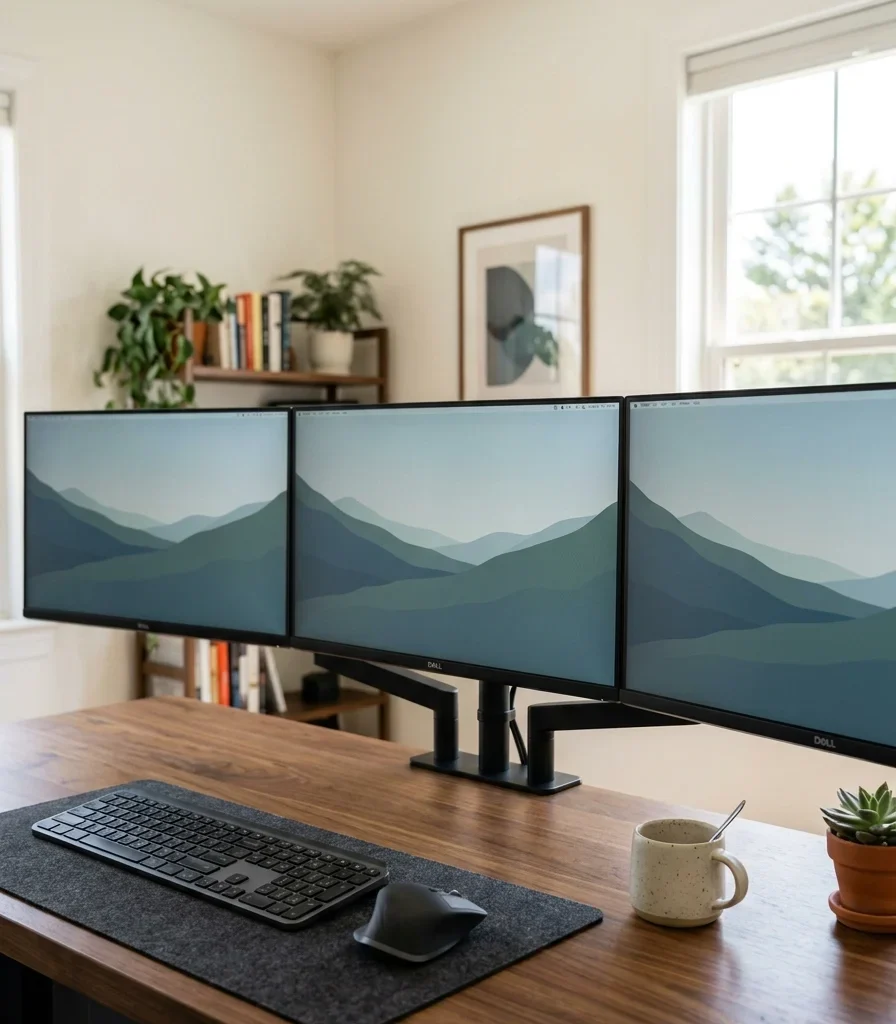
Vibe: Cohesive three screens that read as one connected field of view instead of three separate mismatched devices.
Why it works: Bezel and finish consistency is a visual-continuity principle that matters more with three monitors than one, since mismatched bezel colors or widths across an array create a visible seam the eye has to mentally correct for each time attention shifts between screens, adding a small but constant cognitive interruption over a full workday.
How to get it: Match monitor model, bezel width, and finish as closely as possible across all screens in the array, prioritizing identical models for the two side monitors flanking a center screen even if the center display is a different size, since mismatched side monitors are the most visually disruptive combination.
Shop the Look
| Product |
| Matte black monitor bezel matching set |
| Monitor calibration color kit |
| Small ceramic desk mug |
| Matte black monitor riser |
| Cable clip matching finish |
8. Choose a Curved Ultrawide Monitor Instead of Two Flat Screens

Vibe: Airy, a continuous field of view with no bezel line interrupting the middle of the screen.
Why it works: A curved ultrawide monitor eliminates the bezel-gap problem rather than managing it because the display is one physical panel rather than two or three separate monitors pushed together; there’s no seam where content gets visually cut off mid-window, and the curve itself keeps the edges of a very wide display at a consistent viewing distance from the eyes.
How to get it: Choose a curved ultrawide with a curvature radius matched to your typical viewing distance (roughly 1000R for a desk sitting 30 inches away), and mount it on a monitor arm rather than its included stand if the desk depth is limited, since ultrawide panels are often deeper than standard monitors.
Shop the Look
| Product |
| Curved ultrawide monitor |
| Ultrawide compatible monitor arm |
| Matte black monitor riser |
| Small ceramic desk mug |
| Anti-glare screen filter ultrawide |
9. Layer Ambient Light to Offset Multi-Screen Glare

Vibe: Warm a room lit consistently enough that no single monitor becomes the brightest object in the field of view.
Why it works: Ambient room lighting matters proportionally more with multiple monitors, since a wider array of bright screens against a dim room creates a more pronounced contrast strain than one monitor would alone; an ambient ceiling or pendant light set at a moderate level keeps the whole room’s brightness closer to the monitors’ own light output, reducing the pupil’s constant readjustment between screen and surroundings.
How to get it: Set the room’s ambient ceiling light to roughly 40–50% brightness during screen-heavy work (rather than very dim or very bright), pairing it with the bias lighting behind each monitor covered earlier so the two layers work together rather than one compensating entirely for the other’s absence.
Shop the Look
| Product |
| Dimmable ceiling pendant light |
| In-line dimmer switch |
| Warm 2700K LED bulb |
| Small ceramic desk mug |
| Light level meter app-compatible sensor |
10. Add Anti-Glare Screen Filters for Side Monitors

Vibe: Functional: a screen that stays readable even when a window happens to sit at an unlucky angle behind it.
Why it works: Side monitors in a multi-screen array often catch window glare differently than a center screen facing straight ahead, since their angle relative to a window changes as they turn outward; an anti-glare matte filter specifically on the side monitors (rather than the whole array) addresses this asymmetric glare problem without dulling the sharper, more frequently viewed center display.
How to get it: Apply an anti-glare matte filter only to monitors that show visible window reflection during the brightest part of the day, testing each screen individually at midday before deciding which ones actually need the filter, since applying it universally can unnecessarily soften image clarity on screens that don’t have a glare problem.
Shop the Look
| Product |
| Anti-glare matte screen filter |
| Screen filter mounting clips |
| Small ceramic desk mug |
| Microfiber screen cleaning cloth |
| Adjustable monitor arm tilt |
11. Paint Surrounding Walls Warm White for Balanced Brightness
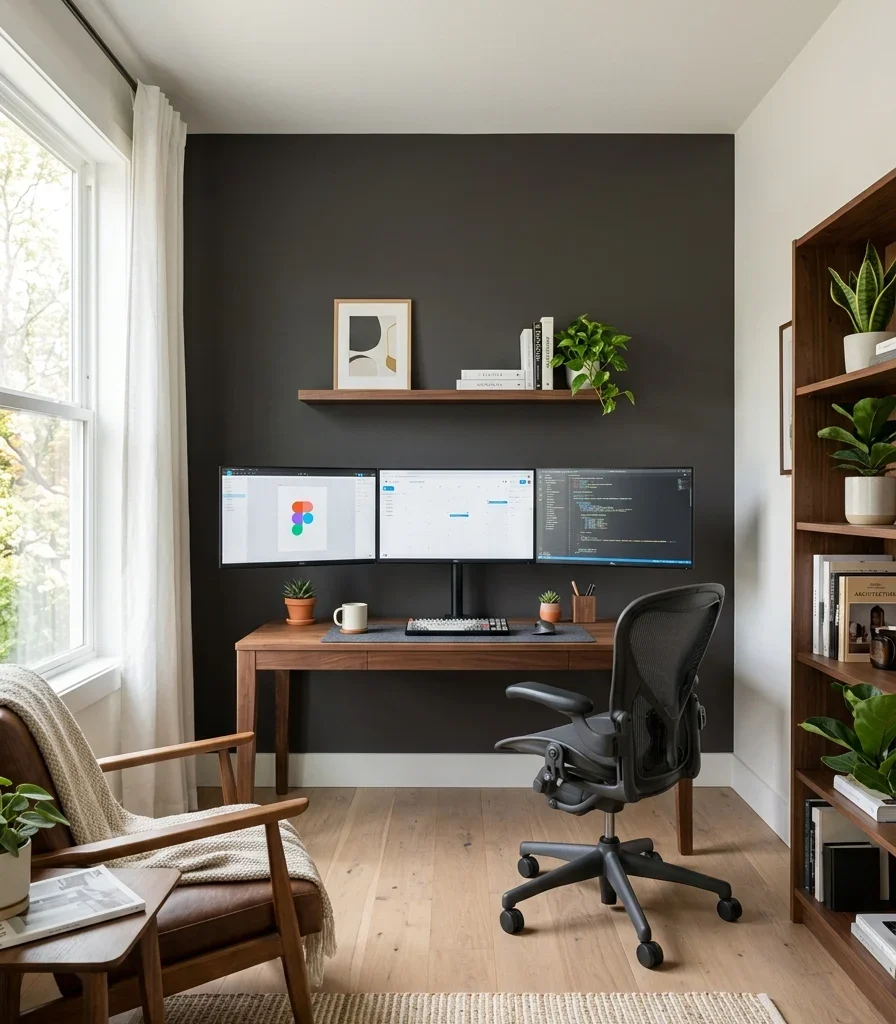
Vibe: Fresh, a room bright enough for comfortable daytime visibility without straining to see any one of three screens.
Why it works: Keeping the room’s remaining walls in warm white while the specific wall behind the monitor array stays charcoal applies contrast strategically rather than uniformly; a multi-monitor setup needs enough general room brightness for peripheral comfort and video calls, while only the direct sightline behind the screens needs the darker tone to manage glare.
How to get it: Paint the room’s remaining walls in a warm white with a slight yellow undertone, reserving the charcoal specifically for the wall section spanning the monitor array’s width as covered in the earlier idea, so the two tones work together rather than one canceling out the other’s purpose.
Shop the Look
| Product |
| Warm white matte wall paint |
| Small framed abstract print |
| Walnut wood picture frame |
| Warm white LED ceiling bulb |
| Painter’s tape edge trim |
12. Add a Monitor-Top Shelf for Small Accessories
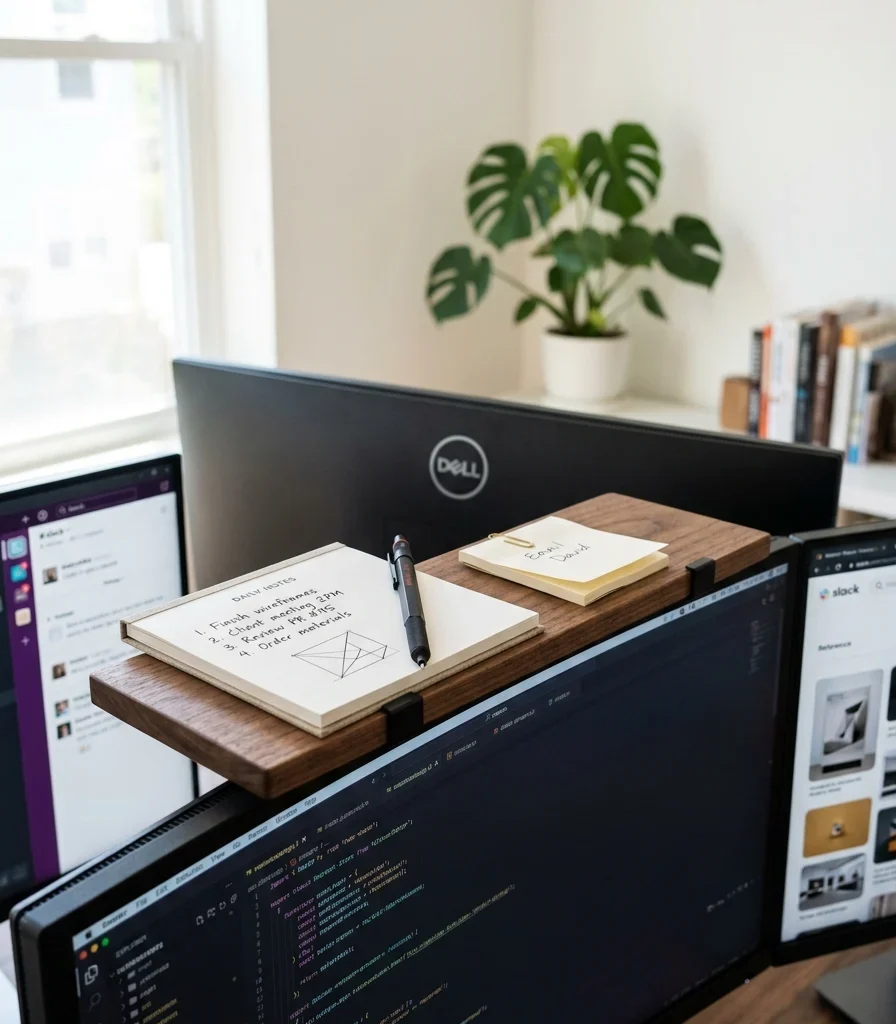
Vibe: Tidy a small extra surface that uses vertical space a wide multi-monitor desk otherwise wastes.
Why it works: A monitor-top shelf applies vertical negative space specifically valuable in a multi-monitor setup, where desk surface is already divided among three screens’ worth of stands or an arm’s footprint, leaving less flat space for small items like a notepad or phone than a single-monitor desk would have.
How to get it: Mount a slim walnut shelf across the top of the center monitor only (not the side screens, which would raise their height above the ideal eye-level position), using a clip-on mount rated for the monitor’s top-edge thickness, and limit items on it to lightweight essentials since weight can affect monitor arm balance.
Shop the Look
| Product |
| Monitor top-mounted shelf walnut |
| Small notepad and pen set |
| Clip-on shelf mounting hardware |
| Small sticky note pad |
| Slim phone stand for shelf |
13. Configure a Stacked Dual-Monitor Setup for Vertical Space
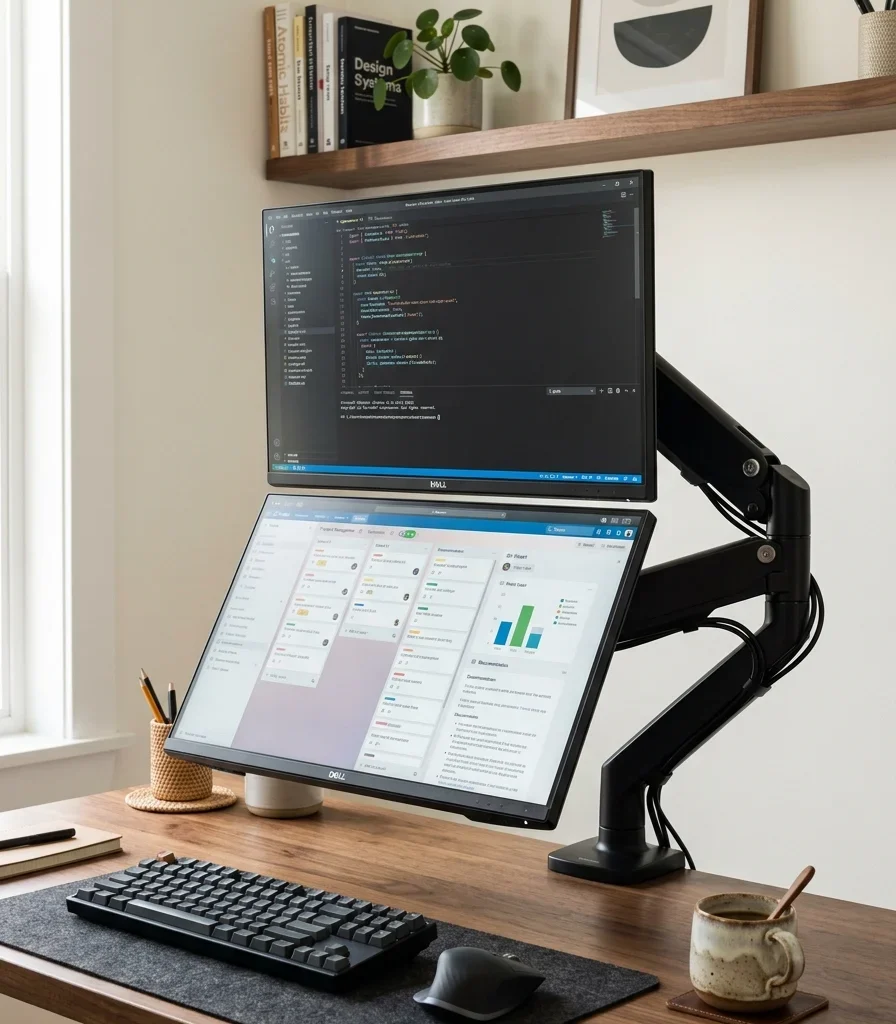
Vibe: Functional two screens stacked to use height instead of desk width, ideal for a narrower work surface.
Why it works: Stacking monitors vertically rather than side by side is a furniture-arrangement principle that trades desk width for vertical space, which suits reference-heavy work (reading documentation on the lower screen while writing on the upper one) better than a horizontal array, and requires significantly less desk width than adding a third monitor beside the first two.
How to get it: Mount the primary working monitor at standard eye level and the secondary reference monitor directly below it, angled slightly upward toward the user rather than flat, since a stacked lower screen viewed at a downward angle needs that upward tilt to stay comfortably readable.
💡 Quick Win: A simple stacking monitor mount under $60 converts two existing monitors into a vertical arrangement without buying new displays.
Shop the Look
| Product |
| Vertical stacking monitor mount |
| Adjustable lower monitor tilt bracket |
| Small ceramic desk mug |
| Cable management for stacked arms |
| Desk clamp base weight rated |
14. Angle the Side Monitors Inward for a Wraparound Field of View
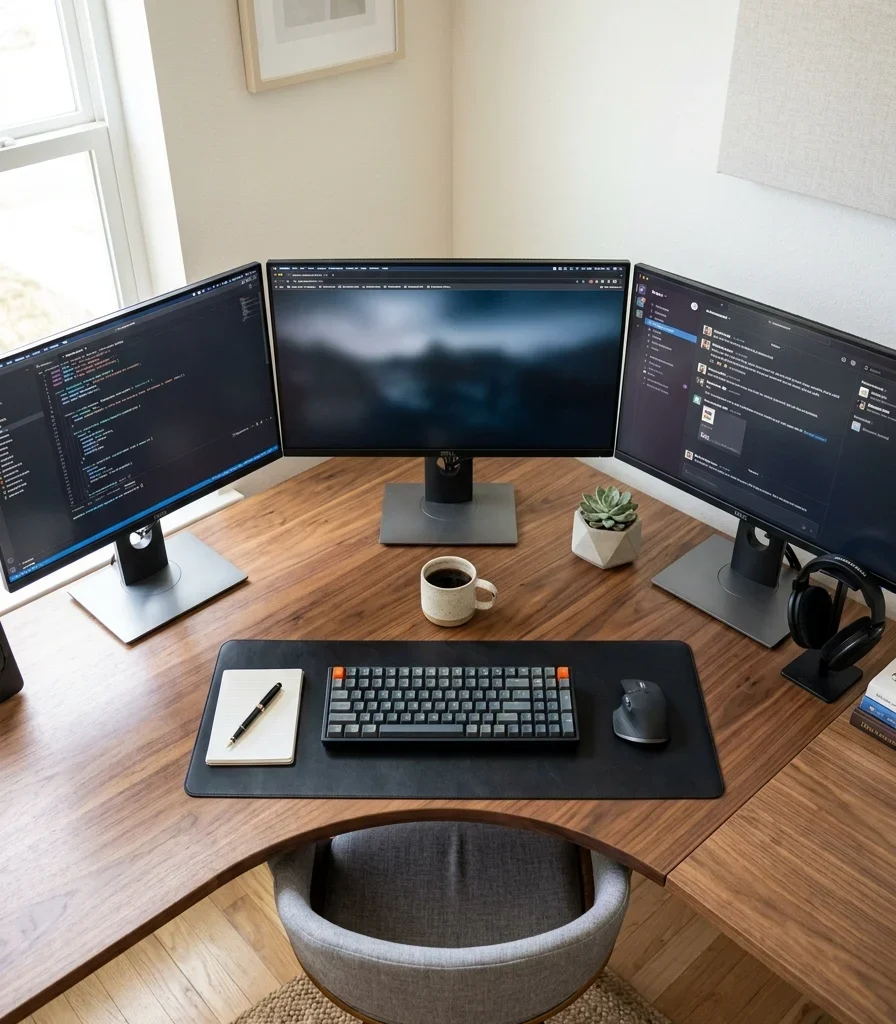
Vibe: Layered three screens curved around the user’s field of view instead of standing in a flat, unbroken line.
Why it works: Angling side monitors inward is a traffic-flow principle applied to eye movement rather than physical walking paths; a flat three-monitor row forces the neck to turn a full 15–20 degrees to view the outer edges of the side screens, while angling them inward at roughly 20–30 degrees keeps their content at a more consistent viewing distance and reduces that neck rotation.
How to get it: Set the side monitors at a 20 to 30 degree inward angle using an articulated arm rather than a fixed stand (fixed stands rarely allow this adjustment), and confirm the angle by sitting in your normal position and checking that you can read text on the outer edge of each side screen without turning your head fully toward it.
Shop the Look
| Product |
| Articulated triple monitor arm |
| Angle adjustment monitor bracket |
| Small ceramic desk mug |
| Desk clamp mounting base |
| Cable management for angled arms |
15. Build a Compact Triple-Monitor Setup for a Narrow Desk
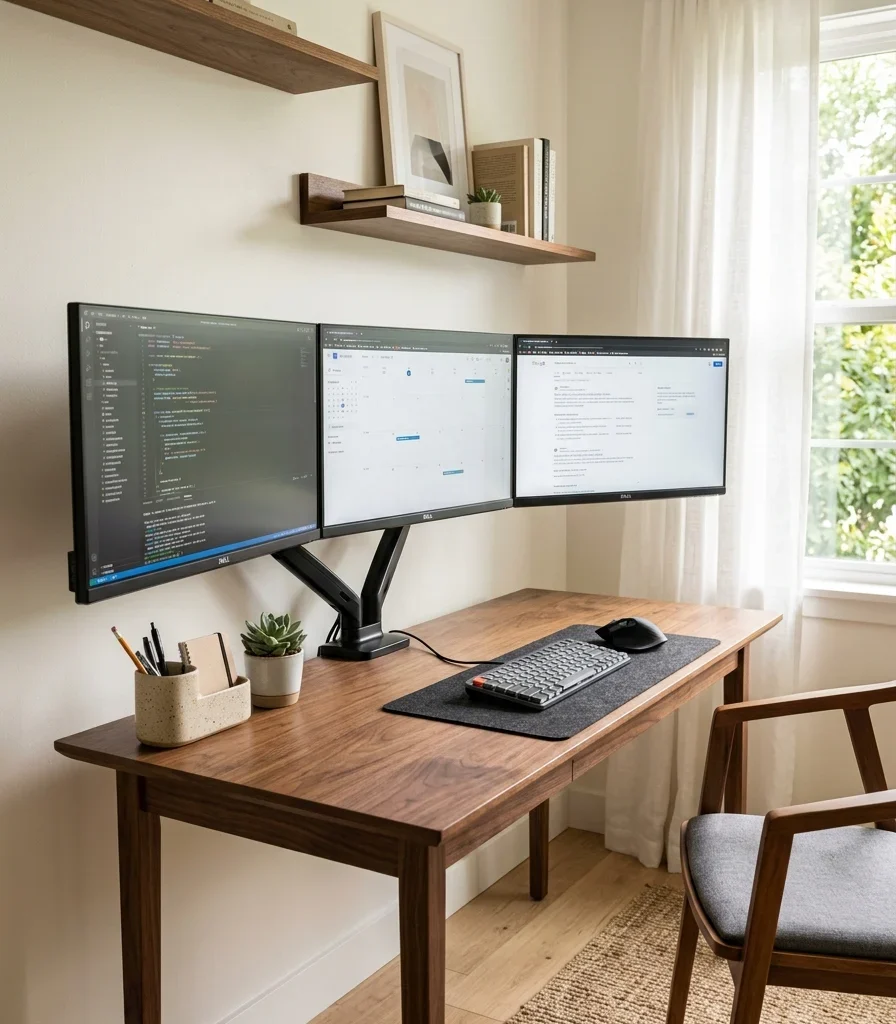
Vibe: Still three full monitors fitted into a desk width that would seem too narrow to hold them until the arm mount does its job.
Why it works: In a genuinely narrow desk under 50 inches wide, a monitor arm is the small-space adaptation that makes three screens possible at all; without an arm, three monitor stands at standard width simply won’t fit side by side on a 48-inch desk, while an articulated arm system can angle and layer the screens closer together than freestanding stands ever could.
How to get it: Choose monitors no wider than 24 inches each for a three-screen array on a desk under 50 inches, mount all three on a single compact triple-arm system rather than individual arms (which take up more base clamp space), and angle the side screens more aggressively inward than you would on a wider desk to compensate for the reduced physical spacing.
💡 Quick Win: A dual-monitor arm plus one slim monitor riser for a third central screen fits three displays on a narrow desk without a specialized triple-arm purchase.
Shop the Look
| Product |
| Compact triple monitor arm system |
| Slim 24-inch monitor set |
| Single monitor riser stand |
| Small ceramic desk organizer |
| Narrow desk cable management tray |
How to Start Your Multiple Monitor Setup Optimization
Your first move is mounting your monitors on an articulated arm before adjusting anything else. Since arm mounting determines every subsequent height, angle, and distance decision for each screen, it has to come first. Adjusting glare, lighting, or cabling around monitors still sitting on their factory stands means redoing that work again once the arm changes each screen’s position.
The most common mistake is treating all monitors in an array identically when only the center screen gets primary attention, which leads people to buy three matched high-end displays when a lower-cost secondary monitor for the side screens would serve reference material just as well. The fix is reserving the highest-quality display for the center position and choosing simpler, well-matched panels for the sides.
Three items under $50 that create immediate impact: a three-pack of USB bias light strips for behind each monitor, a felt-lined cable channel for the desk’s rear edge, and a set of labeled fabric cable sleeves.
A weekend setup arm mounting, lighting, and cable management costs $150–400. A full optimized three-monitor workstation with a curved ultrawide or matched triple-arm array typically runs $800–2,500 depending on monitor size and arm quality.
Frequently Asked Questions About Optimizing a Multiple Monitor Setup
What is the difference between a dual-monitor and triple-monitor optimized setup?
A dual-monitor setup typically needs only a standard dual arm and moderate desk depth, with less concern about side-monitor neck angle since two screens can often sit within a comfortable field of view. A triple-monitor setup requires more deliberate angling of the outer screens, wider desk depth or a compact arm system, and more attention to consistent lighting and bezel matching across all three displays.
What color works best behind a multi-monitor array?
A matte warm charcoal or matte black works best, spanning the full width of the monitor array rather than just the center screen, since a bright wall behind any part of a multi-screen setup increases glare and contrast strain across the whole field of view, not just the section directly behind one monitor.
How much does it cost to optimize a multiple monitor setup?
A budget refresh using bias lighting, cable management, and an anti-glare filter costs $50–200. A mid-range upgrade with a proper triple-monitor arm and matched displays runs $500–1,200, and a full setup with a curved ultrawide or premium matched triple array typically costs $1,200–3,000 depending on monitor size and resolution.
Can a multi-monitor setup work well on a small or narrow desk?
Yes, and a monitor arm matters even more in this case; a compact triple-arm system lets three monitors sit closer together and angle inward more aggressively than freestanding stands allow, making a narrow desk under 50 inches wide genuinely workable for a three-screen array where flat stands alone would not fit.
What is the most important adjustment for a multi-monitor setup?
Angling the side monitors inward is the most important single adjustment, since a flat, unbroken row of monitors forces repeated neck rotation toward the outer screens throughout the day. A 20 to 30 degree inward angle on an articulated arm reduces that rotation more than any single material or lighting change covered elsewhere.
Ready to Optimize Your Home Office Multiple Monitor Setup?
These 15 ideas move across furniture, lighting, color, material, and true small-space adaptations from a triple-monitor arm and angled wraparound field of view to a curved ultrawide that eliminates the bezel gap. None of this needs to happen all at once, and mounting your current monitors on an arm this week is genuinely the smartest place to start, not a smaller version of the full setup. Today’s specific action: sit in your normal position and check whether you have to turn your head to read the outer edge of your side monitors. If you do, that’s the one adjustment to make before anything else on this list. Once the angles, lighting, and cabling are all actually working together, sitting down at a multi-screen desk will feel less like managing three separate distractions and more like working inside one wide, coherent field of view. Save the ideas that fit your desk’s real dimensions and your actual monitor count; that angled arm and matched bias lighting will still be doing their job a year from now.
[…] 15 Ways to Optimize a Home Office Multiple Monitor Setup […]
[…] 15 Ways to Optimize a Home Office Multiple Monitor Setup […]